A single screen for reviewing and committing uncommitted work across every layer in the project, without switching terminals or repos. Diffs, staging, and commits all happen from the same view.
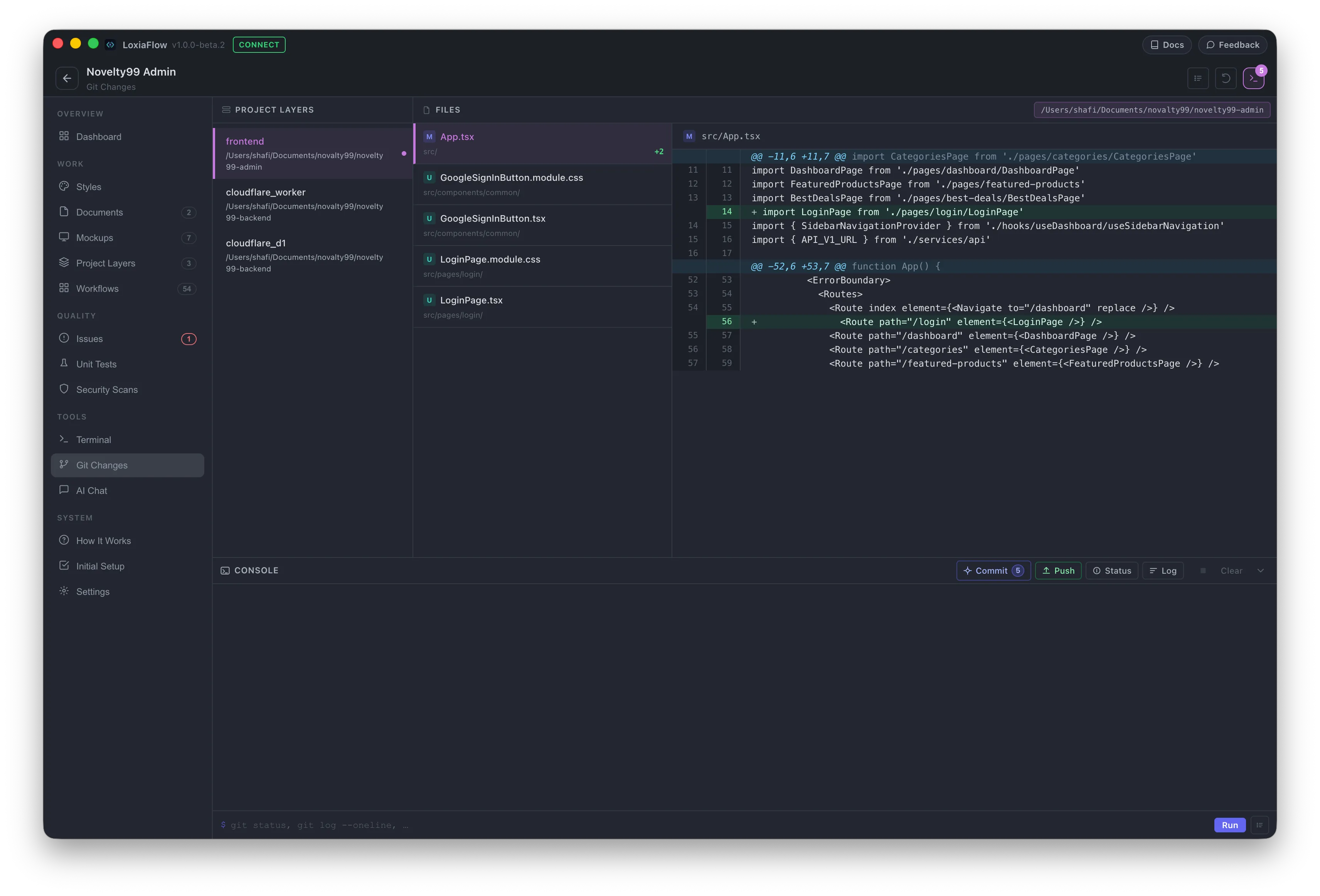
Layout
Three columns: a collapsible Project Layers panel on the left (each row badges its own uncommitted-file count), a Files panel in the center (status badge, +/− line counts, and a full diff viewer), and a collapsible Console panel on the right — opening one closes the other since they share the same row.
If the project has no layers defined yet, the page falls back to showing the project's root folder as a single repo.
Diff viewer
Untracked files are shown as an all-green "everything added" diff (there's no real git diff for them yet); tracked files show the real unified diff with old/new line numbers, hunk headers, and colored +/− rows.
Console
A real shell scoped to the active layer's folder. Type any command and press Enter, or use the quick-action buttons: Commit, Push, Status, Log. The Commit button and the Quick Commands picker (saved shell snippets, managed via the ellipsis button) both support a {{input}} placeholder — clicking a command containing it opens a small "fill in value" prompt before running.
A badge next to Commit shows the uncommitted-file count, and a separate badge next to Push shows the unpushed-commit count, flashing green whenever it increases (i.e. right after a new commit).
git add -A before committing. Use the Console for finer-grained staging. | Shortcut | Action |
|---|---|
Ctrl/Cmd + R | Refresh file list and git status |
Ctrl/Cmd + L | Clear the console output |