AI-generated unit tests for the source files you pick, run against the real test command detected for your stack — with stale-test detection so you know which tests fell behind their source.
Language detection
LoxiaFlow inspects the layer's folder for real project markers (in priority order): pubspec.yaml → Flutter, go.mod → Go, Gemfile → Ruby, pom.xml/build.gradle → Java, requirements.txt/pyproject.toml → Python, package.json (parsed for React/Vue/Angular deps) → JS/TS, or .csproj → .NET. If no marker is found, it falls back to keyword-matching the layer's Setup Instructions text.
Generate mode
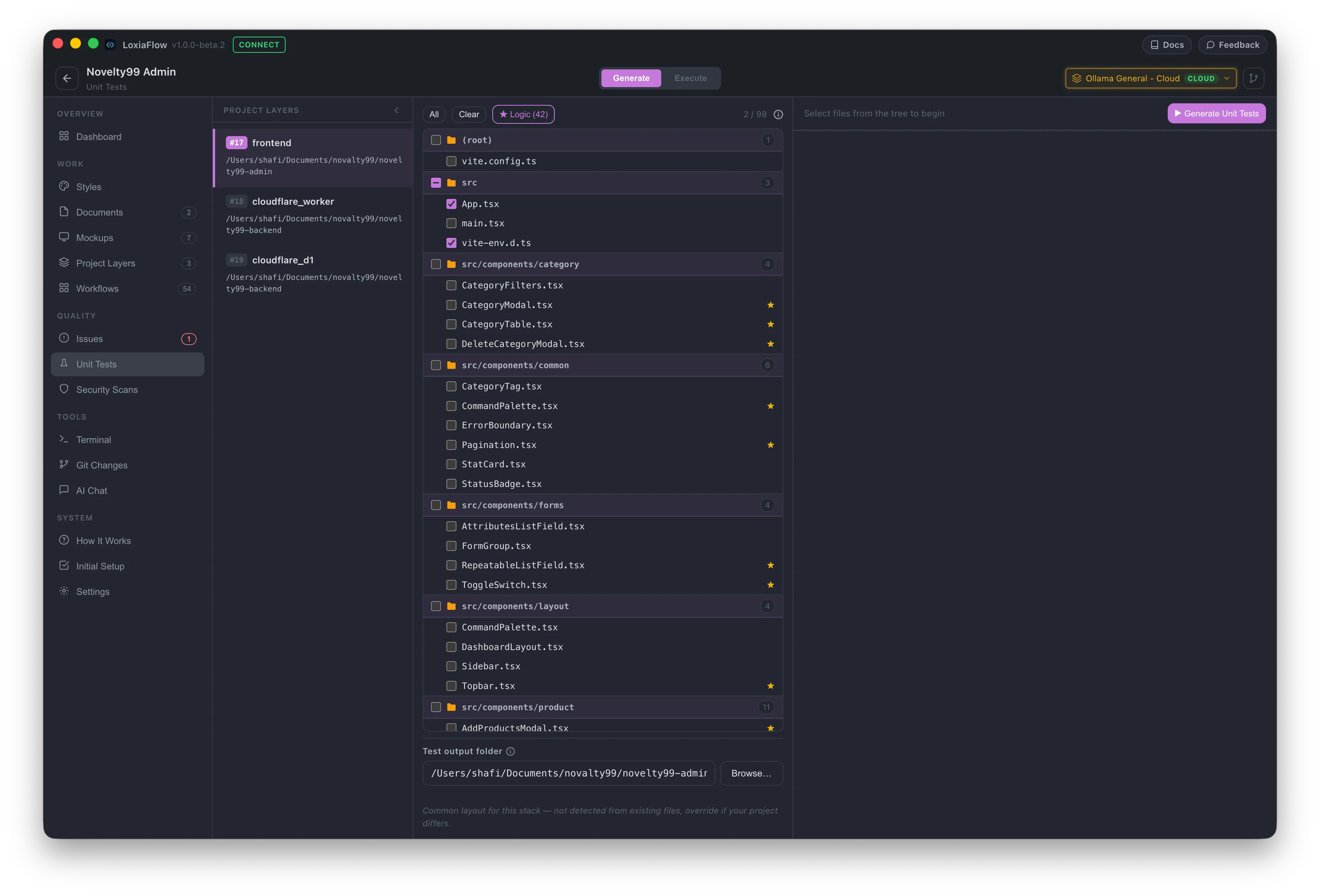
Pick source files from the tree (checkboxes, tri-state folders). A ★ Logic quick-select finds files with a high density of branching logic (if/switch/try/&&, etc.) — the files most worth testing. Files with an existing test show a green dot; files whose source changed since the test was generated (via a stored git hash) show an orange "stale" dot with a ↻ Regenerate outdated shortcut.
Set a test output folder (remembered per layer), then ▶ Generate Unit Tests — the AI is given the source file, its imports, and any relevant config (tsconfig.json, jest.config.*, vitest.config.*, etc.) and told to cover happy/edge/error/boundary cases with no empty or skipped tests.
Execute mode
Switches the left panel to the real test files found on disk (not a guess). LoxiaFlow auto-detects a runnable command per stack — Jest/Vitest/Angular (from package.json scripts and deps), flutter test, pytest, go test, bundle exec rspec, dotnet test — and appends a coverage flag automatically where one is parseable (e.g. --coverage, --cov). Run Selected is capped at 20 files at a time; Run All runs the whole detected command.
Output is parsed per-framework into pass/fail counts and, where available, a coverage percentage. If a run's output can't be recognized, it's flagged rather than silently reported as a pass.
After a run
A result banner (pass / fail / unrecognized) offers Create Issue — files an issue automatically, with an AI-summarized description of the failures when analysis succeeds (raw output as a fallback) — and every run is saved to Test Run History, whose latest fail count shows as a sidebar badge elsewhere in the app.