The home screen shown before any project is opened — create new projects, jump back into recent ones, and switch the app theme, all from one screen.
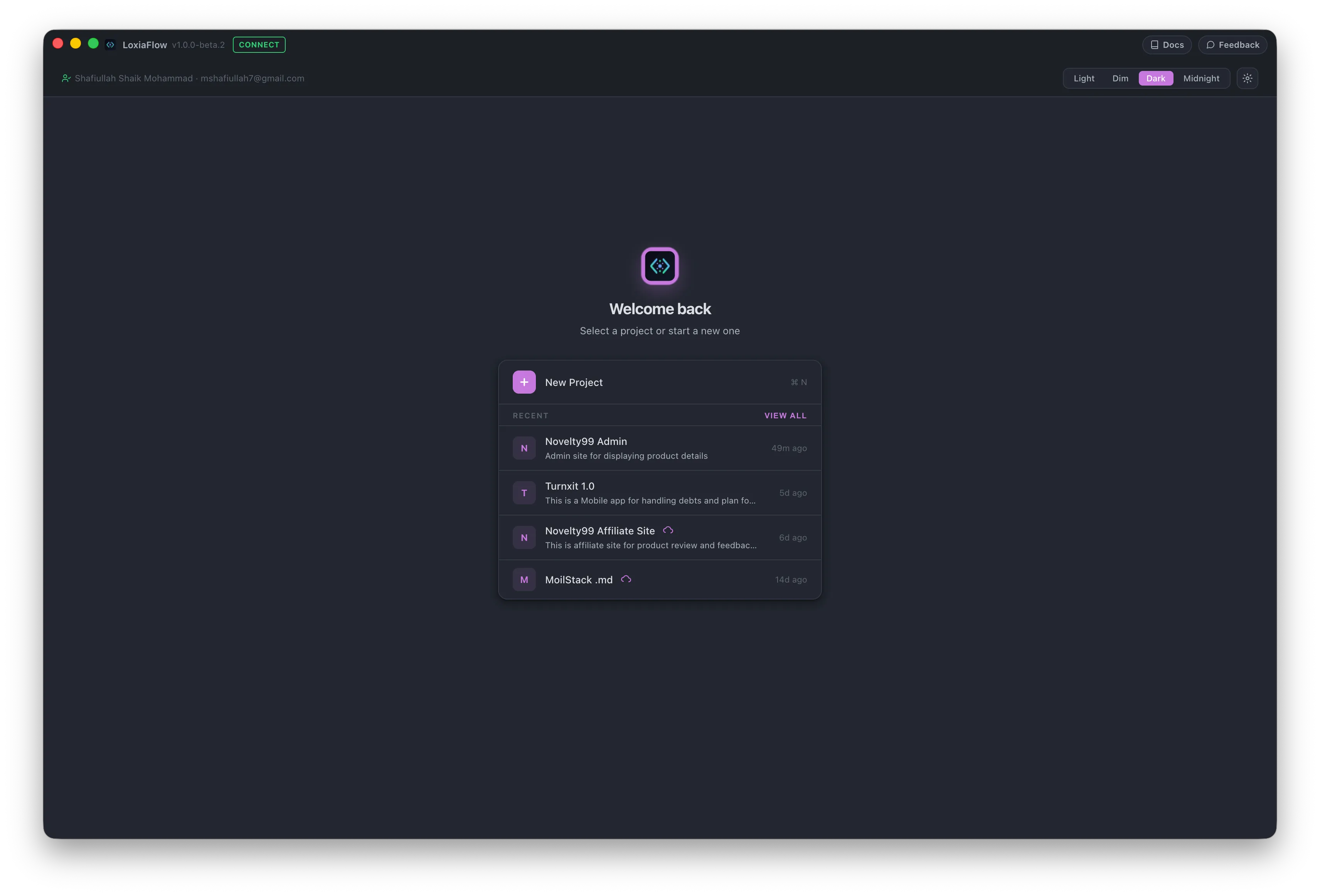
Recent projects
The main card lists your projects, each row showing a colored initial, name, description, and a “time ago” since creation. Hovering a row reveals Edit (pencil) and Remove (✕) icons; clicking anywhere else on the row opens that project. If you have no projects yet, an empty state (“No recent projects yet”) is shown instead.
Creating a project
Click New Project (or press Ctrl/Cmd+N) to open the New Project modal: Project Name*, Description, and optional Start Date / End Date (used later for the Project Home timeline). The modal only closes via its Cancel/Create buttons — clicking outside it or pressing Escape is deliberately disabled so you don't lose in-progress input.
Editing and removing
- Edit (pencil icon) opens the same field set pre-filled, for renaming or adjusting dates.
- Remove (✕ icon) asks for confirmation, then soft-disables the project (
is_active = 0) rather than deleting it outright — “You can restore it later.”
Theme switcher
Three pill buttons in the header switch the app's chrome theme: Light, Dark, Midnight. This is separate from a project's own Style Guide (which controls the visual language of generated Mockups, not the app UI).
| Shortcut | Action |
|---|---|
Ctrl/Cmd + N | Open the New Project modal |
Enter / Space (on New Project row) | Open the New Project modal |