Turns an issue straight into an AI-driven fix — pick one from the list and have the model work it in a real terminal, with live output and a git panel to review the changes as they land.
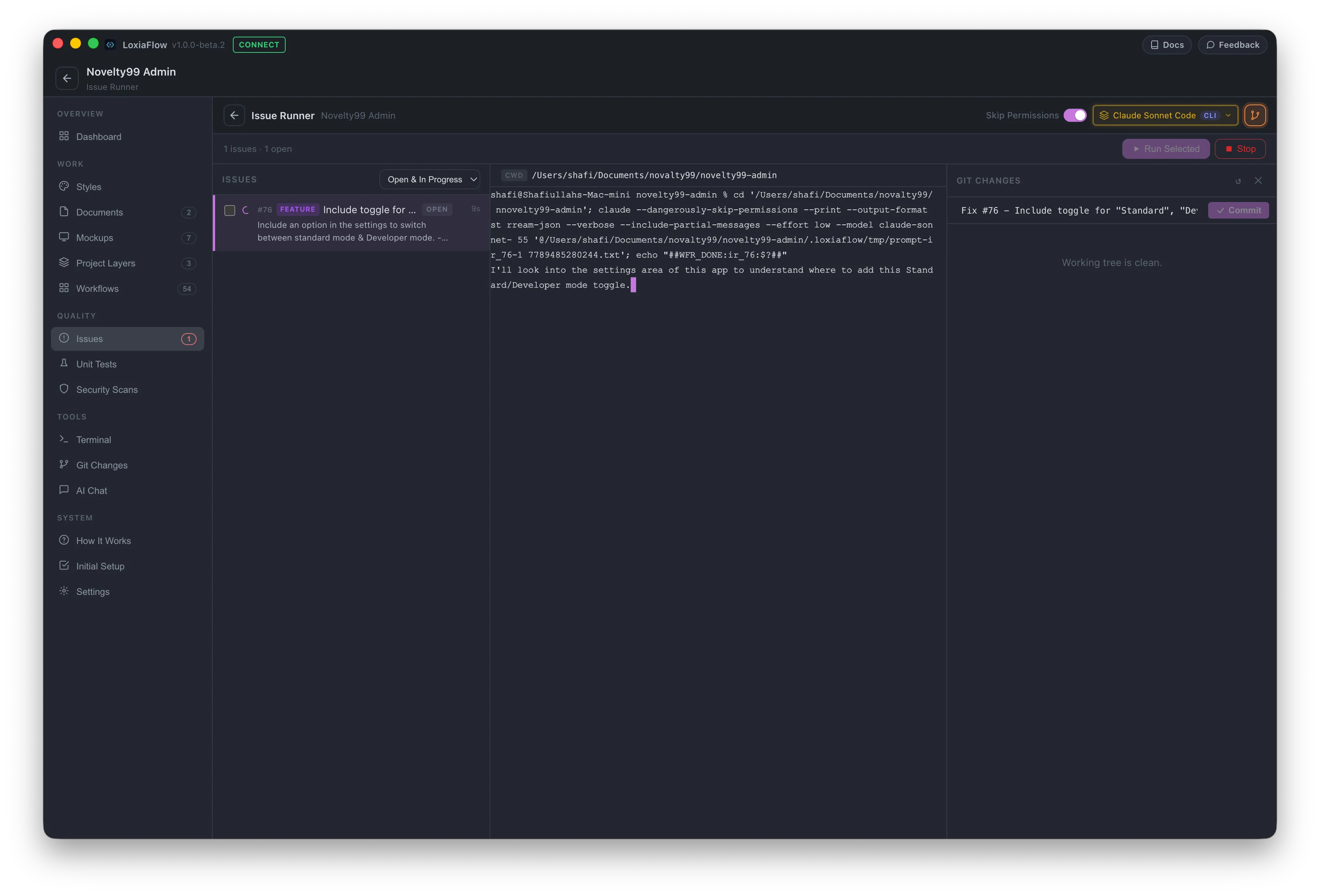
Layout
A two-column layout: the issue list (filterable, defaulting to Open & In Progress) on the left, and a working xterm.js terminal plus a Git Changes panel on the right. Each list row's icon reflects live run state — spinner while running, checkmark on success, ✕ on failure.
Running
- Run Selected — runs the chosen issue interactively, so you can respond in the terminal if the CLI tool asks something.
- Run All — runs every open/in-progress issue non-interactively, automatically chaining to the next runnable issue as soon as one succeeds. The chain stops on the first failure or when nothing is left to run.
- Skip Permissions toggle (on by default) controls whether the CLI tool asks before each file edit/command — Run All always runs non-interactively regardless of this toggle's setting for a single run.
Typing exit in the terminal and pressing Enter closes the runner. Re-selecting a completed or failed issue replays its recorded output rather than showing whatever is currently running.
Git panel
Same file list / diff viewer / commit bar as elsewhere, pre-filling the commit message as Fix #<id> - <title>.
| Shortcut | Action |
|---|---|
Ctrl/Cmd + Enter | Run the selected issue |
Escape | Stop the current run |