Define reusable multi-step AI workflows for recurring development tasks — each broken into ordered, individually-runnable layers.
Workflows are grouped by the Mockup screen they're linked to (if any), in an order you control via the Reorder Pages button — useful for sequencing bottom-up development (build dependency screens first). A group auto-collapses once every workflow inside it is Completed or Differed.
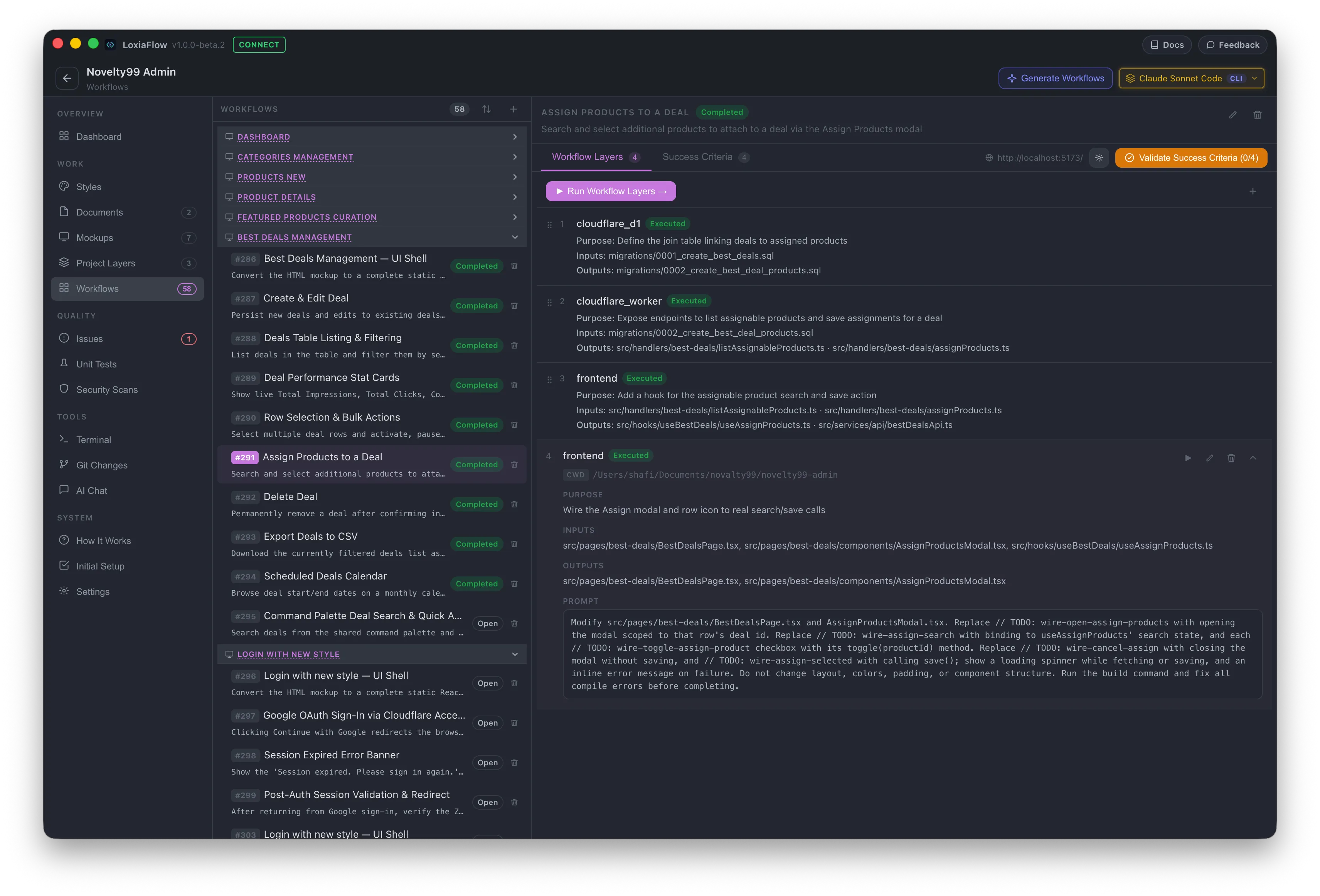
Workflows — layer list with Purpose/Inputs/Outputs expanded on one row
Adding a workflow
The + button opens a small modal: Feature/Name*, Description, and an optional Page to link it to. Status is one of Open, In Progress, Completed, or Differed.
Layers tab
Each layer (step) has: Layer (linked to a Project Layer, or free text), Order, Status (Open / Executed / Failed / Needs Review), Purpose, Inputs and Outputs (one per line), and a Prompt — the actual instructions sent to the AI. Rows are drag-and-drop reorderable (⠿ handle); each has Copy, Run, Edit, and Delete icon actions.
If a workflow is linked to a Mockup page and its type is "UI Shell," the first layer automatically gets that page's generated HTML injected into its prompt as the visual reference the AI must match.
Running a layer
Click the ▶ Run icon on a layer, or Run Layers → to open the full Workflow Runner. Before launching, LoxiaFlow checks that a model is selected, that CLI-type layers have a linked Project Layer with a folder path set, and warns if another runner session is already using the shared terminal.
Success Criteria tab
A simple checklist per workflow — add criteria, click to toggle pass/fail, edit or delete. This is what feeds the "Success Criteria" donut on Project Home.
Workflow status and layer status can update live from a separate Workflow Runner window/tab while you're on this page — no manual refresh needed.
Generate Workflows — AI Implementation Planner
Turns one or more Mockup screens plus project documents into a complete, ready-to-run set of Workflows.
Selecting inputs
Pick one or more Mockup screens and at least one Document (the generator expects a "System Structure YAML" describing your tech stack per layer, typically from the Project Overview document). With a single screen selected, the prompt is shown and editable before you generate; with multiple screens, each one's prompt is built automatically in turn.
What gets generated
For each screen: first a UI Shell workflow — a single layer that turns the mockup into a real, static page in your project's actual UI framework (read from your docs, never assumed to be any particular stack), with every interactive element wired to a // TODO: wire-* placeholder and no backend logic. Then one workflow per discrete feature visible in the screen, each broken into ordered layers: Data Model → Repository → State Management → Wire Up (if a UI layer applies) → an Integration Build & Fix layer per Project Layer touched.
Every layer prompt is capped at 200 words, excludes actual source code, and ends with an instruction to run the build and fix compile errors before finishing. Generated workflows are scoped to your project's actual declared Layer names and are immediately visible and runnable on the Workflows page.
Batch behavior
Multiple selected screens are processed strictly one at a time; each screen's workflows are written to the database as soon as they're parsed (not held until the whole batch finishes), and one screen failing doesn't stop the rest. A summary view lists per-screen results — workflow count, error, or skipped — when the batch completes.
Closing this modal (or navigating away) is blocked while a generation is running, since there is no resume — cancelling stops the batch outright.